
On this page, we’ll guide you on how to use SPD Upgrade Tool to flash stock ROM or install stock firmware Flash File on Spreadtrum/Unisoc SPD Android smartphones & Tablets.
So, if you are facing brick, stuck at boot logo, factory reset, unlock frp lock, fix pattern, password, pin lock, then the following tutorial and files will help you to repair the phone easily.
Note: Installing or flashing stock ROM using the SPD Upgrade Tool will erase all data from your device. To avoid losing important information, take a full backup before using the tool.
Do read: Upgrade Tool
How to use SPD Upgrade Tool to Flash PAC & P5C Firmware
- First of all, Download & extract the SPD Flash Tool.
- Install the SPD USB Driver. (Skip this step if you have already installed)
- Now Download the stock firmware according to your device model and version. : Firmware File
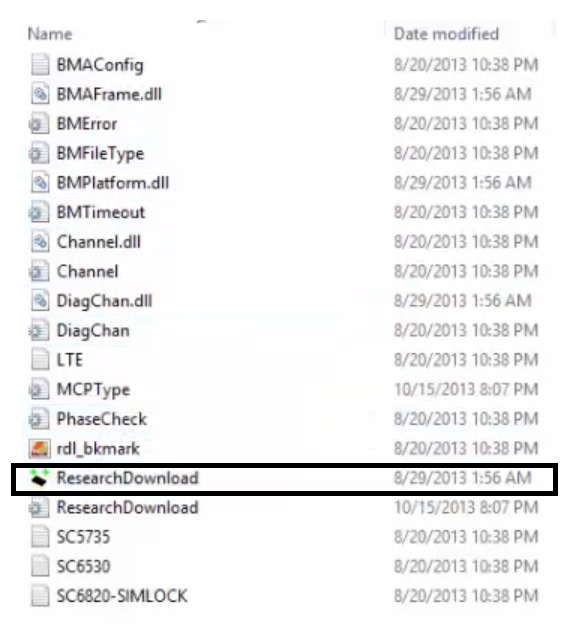
Step 1: Run Flash Tool
- Run upgradedownloadtool.exe.

- Now the tool will launch.
Read: SPD Flash Tool R2.9.7002
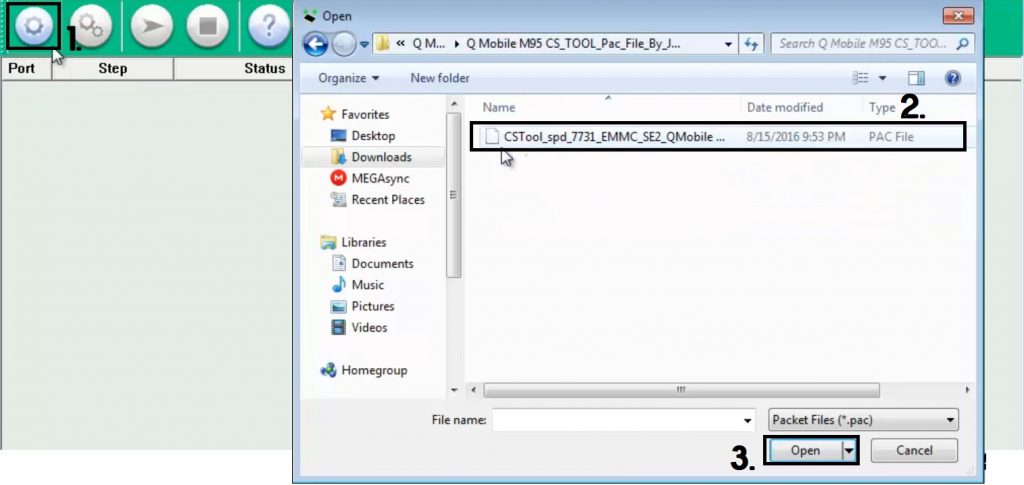
- Click the first “Load Packet (Gear)” icon.
- Now Browse and select the .pac or .p5c firmware from your computer, and click Open.
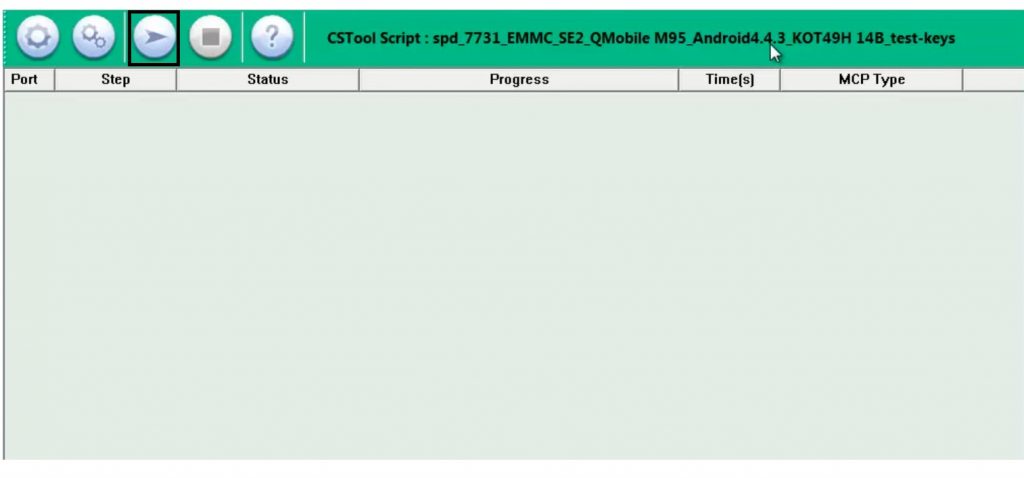
- After that, Click third or “Start Download” icon to start Flashing the firmware.
Step 2: Connect your SPD-based Phone to Windows
- Power Off your UniSOC or Spreaturm powered phone.
- Next, Press & Hold “Volume Down & Volume Up”

- Connect USB cable to Phone & Windows.
Step 3: Start Flashing Firmware
- Open Device manager, the “SPD USB Port” will be visible under port section.
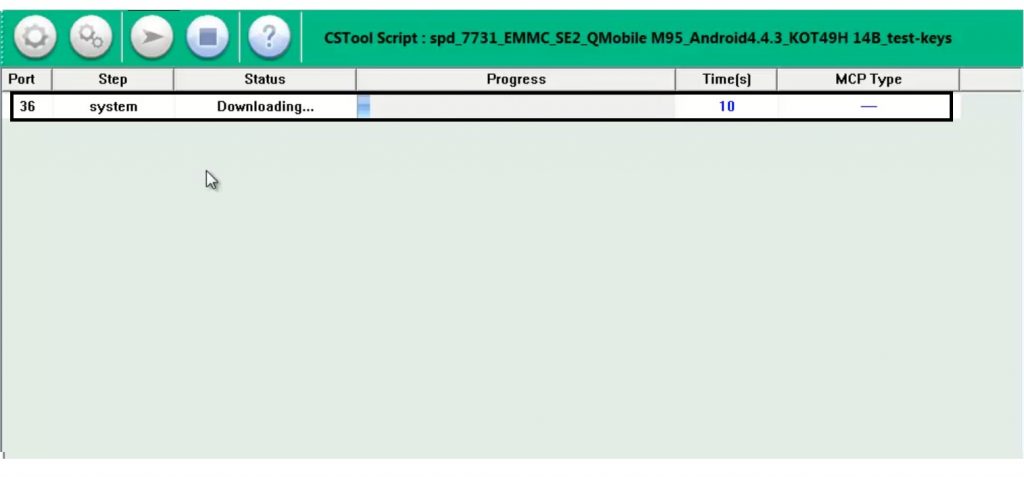
- Open the SPD Upgrade Tool the phone will be detected.
- The flashing process will begin.
- Wait for the finish completely.
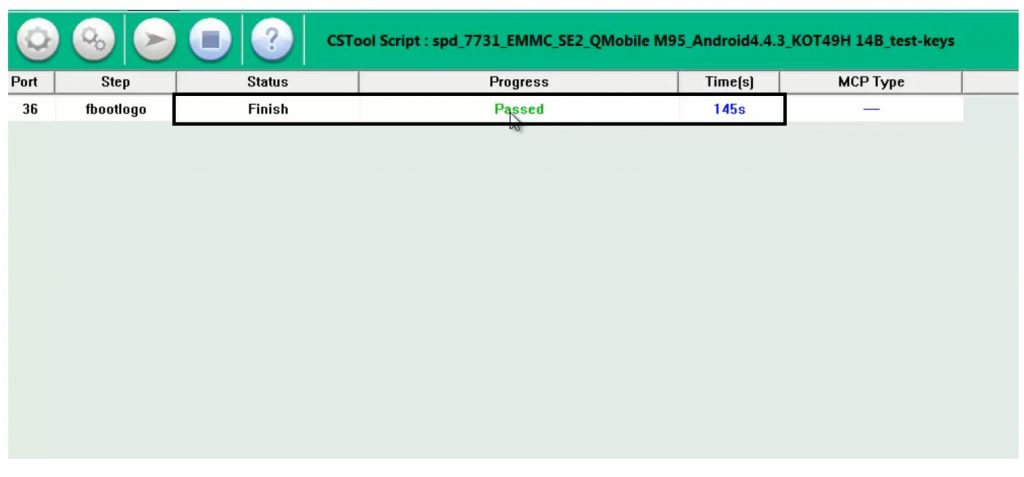
Step 4: Disconnect & Power On your Phone
- When finished, a message with “Passed” will appear in the SPD Upgrade tool.
- Disconnect the phone from the computer and Power On.
- Close the tool.
- That’s it.
Final Words:
SPD Upgrade & Flash Tool: If you’re looking for latest latest version of the SPD Upgrade Flash Tool then head over to our Upgrade Tool section to get compatible version for your Spreadtrum/Unisoc devices.
SPD Research Tool: Get the latest version of the SPD Research Tool from our Research Tool Section, this will help you to diagnose and troubleshoot your Spreadtrum/Unisoc smartphones and tablets.
Factory Tool: Access to our SPD Factory Tool page for advanced-level firmware flashing & repair the SPD-based smartphones & tablets.
SPD/Unisoc USB Driver: Ensure proper connection between your device and PC by downloading the compatible SPD/Unisoc USB Driver from this page.